
Overview
The Skill Dynamics experience, also called SDX, is the learner homepage and navigation area. It brings together access to your learning journey, assessment results, programme information, certificates, insights, and learning resources from one place.
Applies to
Learners using the Skill Dynamics platform.
Before you start
- Make sure you can sign in to the Skill Dynamics platform.
- Complete your profile registration if this is your first time accessing the platform.
- Some areas may only appear after your assessment, learning plan, certificates, or insights access are available.
What you can see on the SDX homepage
The homepage is organised into four main quadrants. Each quadrant gives you a quick view of an important part of your learning experience.
Screenshot: SDX homepage showing the main dashboard areas.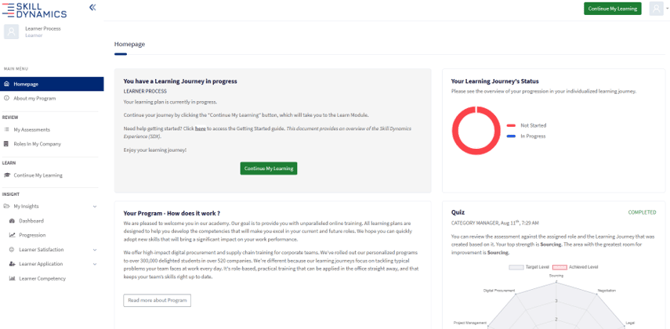
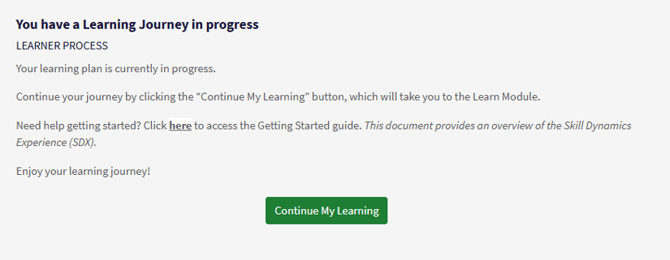
- Learning Journey in Progress. This area shows whether you have a learning plan currently in progress. Select Continue My Learning to resume your courses. When available, you can also download the Getting Started document from this area.
Screenshot: Learning Journey in Progress quadrant.
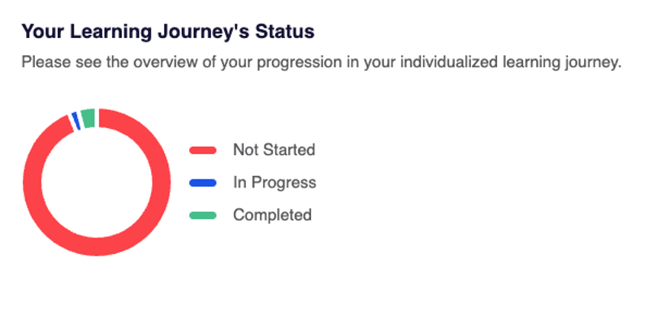
- Learning Journey Status. This area shows your learning status by course progress, grouped as Not started, In Progress, and Completed.
Screenshot: Learning Journey Status quadrant.
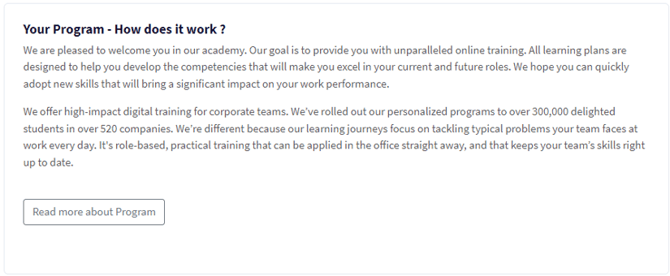
- About Your Program. This area contains a message from Skill Dynamics or your management team. Select Read more about Program to open the dedicated programme page and access the Catalog.
Screenshot: About Your Program quadrant.
- My Assessments. This area gives access to your assessment results, including your strongest competence, your greatest opportunity for growth, and the module breakdown in your learning plan.
Screenshot: My Assessments area and assessment results information.
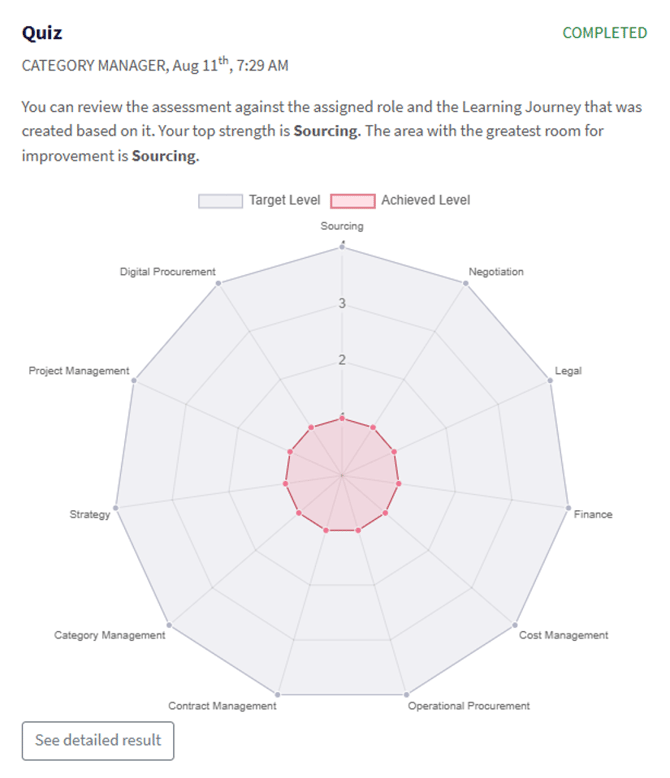
Other areas available from SDX
- Roles In My Company: view the roles and Learning Journeys created specifically for your company.
- Catalog: explore Procurement and/or Supply Chain modules. Courses already included in your assigned Learning Journey are highlighted in yellow and labelled Enrolled.
- Chosen Courses: view courses you have personally enrolled in from the Catalog.
- Resources: access course notes, videos, templates, and articles related to Procurement and Supply Chain.
- Log out: select the profile logo in the top-right corner of the homepage and choose the logout option.
Screenshot: Catalog where learners can search, filter, and enrol in additional courses.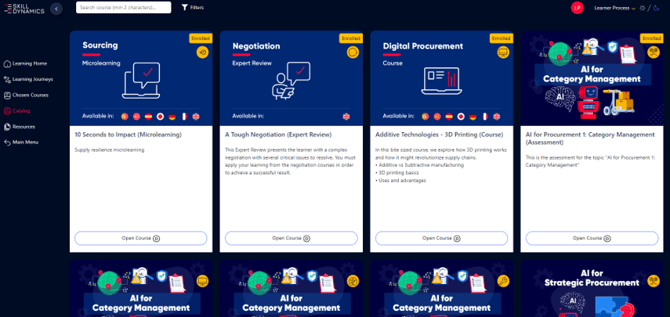
Screenshot: Chosen Courses area.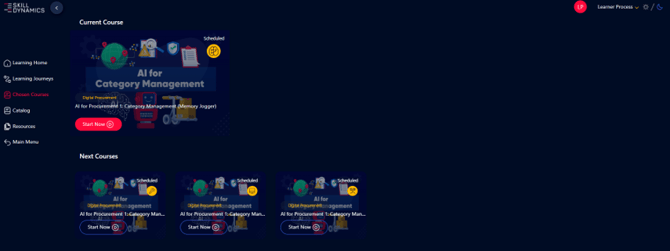
Screenshot: Resources tab with course notes and articles.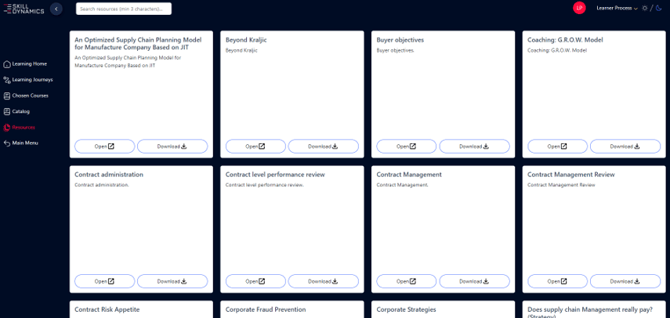
Screenshot: Profile logo used to log out from the homepage.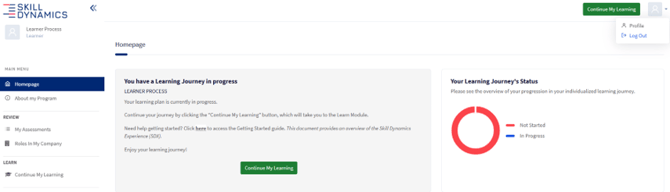
Main Menu options
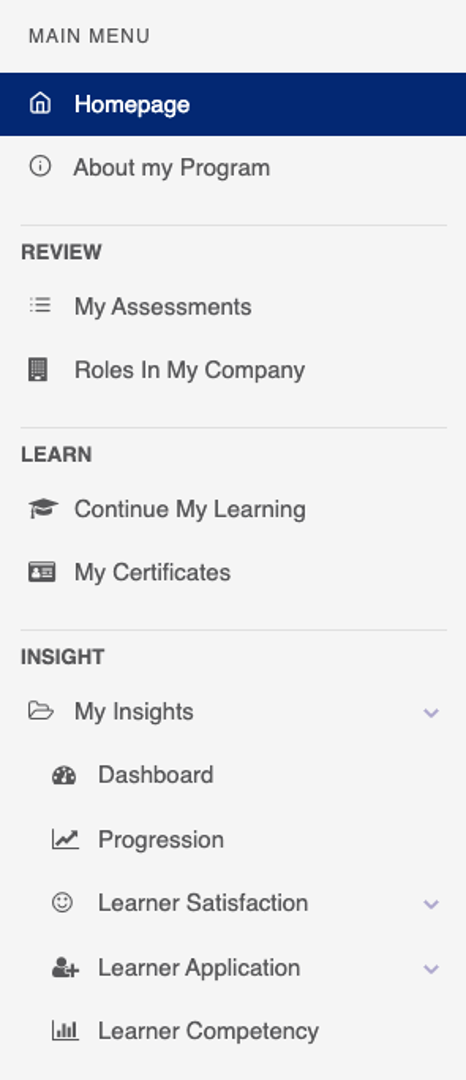
The Main Menu is located in the top-left corner of the screen. Use it to navigate between the main SDX areas.
Screenshot: Main Menu options.
|
Useful notes
- The areas and options you see may depend on your company setup and your stage in the learning journey.
- Assigned learning plan courses should remain your priority, even if you explore additional Catalog courses.
- Certificates are listed only when the relevant learning plan or certificate process is completed.
If you still need help
Please contact Skill Dynamics Support at support@skilldynamics.com and include the details below so the team can investigate quickly:
- Name of the missing dashboard area or menu option
- Full name
- Work email address
- Company name
- Screenshot of the issue or error message
- Date and time the issue occurred
- Browser and device used