
Overview
The Learning Management System (LMS) provides administrators with the ability to send email notifications to learners regarding their assigned training. These notifications help ensure learners are aware of newly assigned courses and are reminded to complete training within the required timeframe.
Applies to
This article applies to LMS administrators, Supervisors, Learning coordinators and user with permission to manage learner assignment and communication.
Before you start
- The learners have active LMS accounts.
- Courses have been assigned to the intended learners.
- Learner profiles contain valid email addresses.
- The email content and subject are prepared if customization is available.
- *.skilldynamics.com should be whitelisted to avoid email getting into junk and spam.
Steps to follow
1. Emails: The Email tab allows administrators to create, customize, and manage email templates used for learner communications within the Learning Management System (LMS). These templates can be used for various notifications, including course invitations and training reminders.
By configuring email templates, administrators can ensure that communications are consistent, professional, and aligned with organizational branding and messaging requirements.
Screenshot: Create a New Template.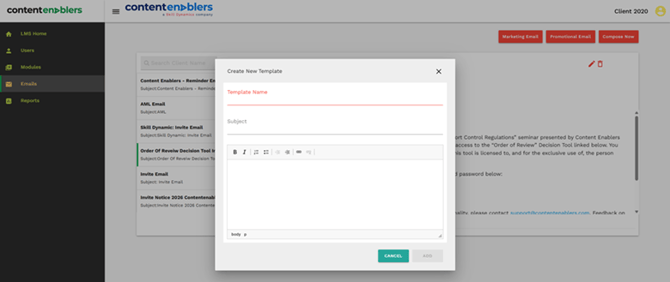
2. Invite Emails: Navigate to the Modules tab, select a course, and choose “All Users.” For first-time enrolled users, an invite notification email will be sent to inform them that the courses have been assigned.
Screenshot: Sending email for new users.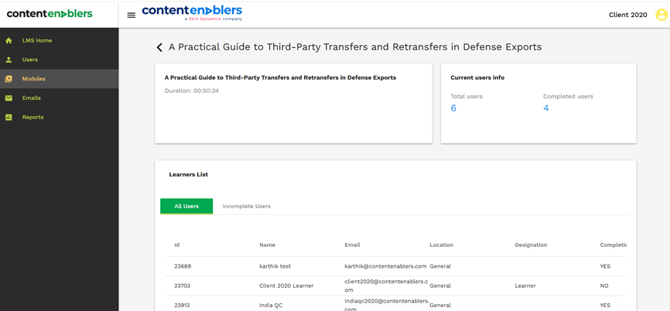
3. Reminder Email: Navigate to the Modules tab and select a course. To send a reminder email for incomplete users, go to the “Incomplete Users” tab (next to “All Users”) to view users who have not completed the course, and then click “Send Email.”
Screenshot: Incomplete user list page.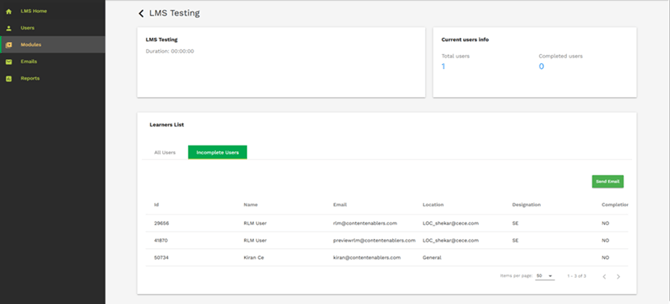
Screenshot: Email list page.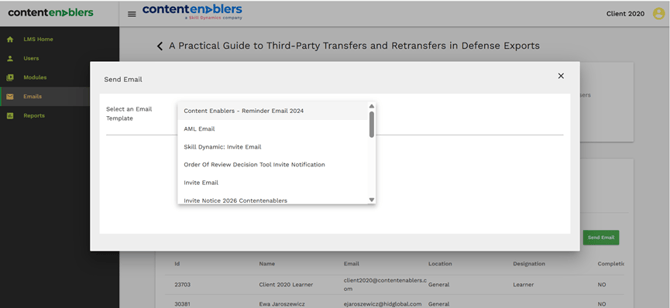
Screenshot: Select an Email Template.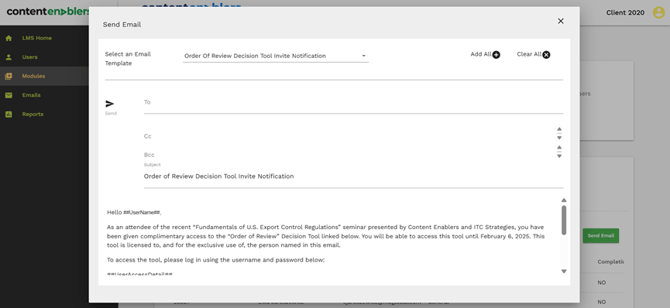
Step-by-Step Instructions
1. Select a Template: Click on the "Select Email Template" dropdown menu near the top of the modal window. Choose the relevant notification template you want to send from the list.
2. Review or Edit the Content: Once a template is selected, the blank body area below the dropdown will populate with the template text. Review the content to ensure all information is correct.
3. Send the Email: (Note: The main "Send Email" button in the background is currently covered by this modal window). Look for a confirmation or submit button that appears inside or at the bottom of the modal after you select a template or verify if selecting the template activates the process.
Common reasons you may not be able to continue
- Notifications cannot be delivered if a valid email address is not configured in the learner's profile.
- Invite and reminder emails can only be sent for courses that have been assigned to learners.
- System-level notification settings may prevent emails from being generated or delivered.
- Notifications cannot be sent to learners whose accounts have been disabled.
- Delivery may be delayed due to mail server processing, spam filtering, or organizational email security policies.
If you still need help
Please contact Skill Dynamics Content Enablers Support at support@contentenablers.com and include the details below so the team can investigate quickly:
- Invitation email subject line
- Screenshot of the page or message shown
- Full name
- Work email address
- Company name
- Screenshot of the issue or error message
- Date and time the issue occurred
- Browser and device used