
Overview
Use the Forgot Password option on the Skill Dynamics login page to request a password reset email. After receiving the email, select Reset Password, create a new password, and use the new password to log in to your account.
Applies to
Learners who sign in to Skill Dynamics using an email address and password.
Before you start
- Use the email address registered to your Skill Dynamics account.
- Make sure you can access the inbox linked to your registered email address.
- Check your Spam, Junk, or email quarantine folder if the password reset email does not arrive in your Inbox.
- If your organisation uses Single Sign-On (SSO), you may need to sign in with your internal company credentials instead of resetting a Skill Dynamics password.
Steps to follow
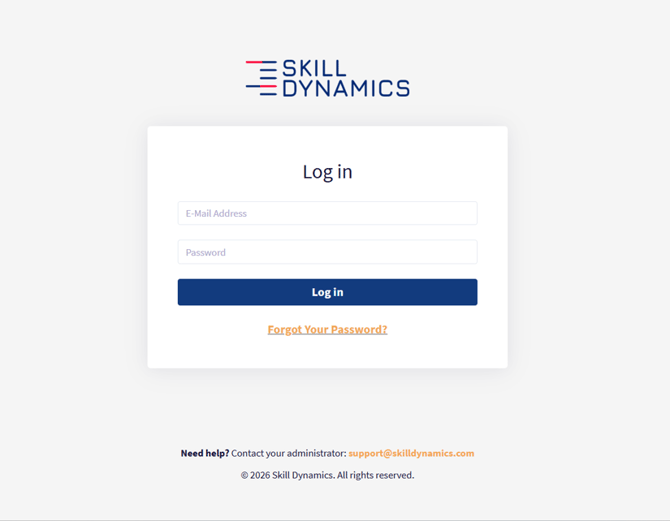
- Open the Skill Dynamics login page. The login page contains the email address and password fields, the Log in button, and the Forgot Password? option.
Screenshot: Skill Dynamics login page with the Forgot Password link.
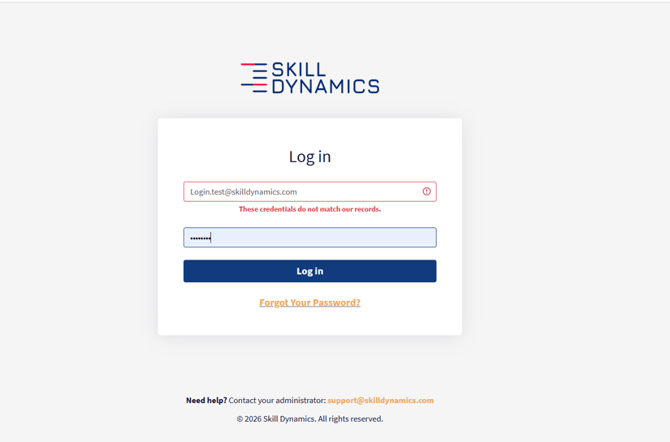
- Select Forgot Password? If your login attempt fails because of invalid credentials, select Forgot Password? below the Log in button.
Screenshot: Invalid credentials message and Forgot Password link.
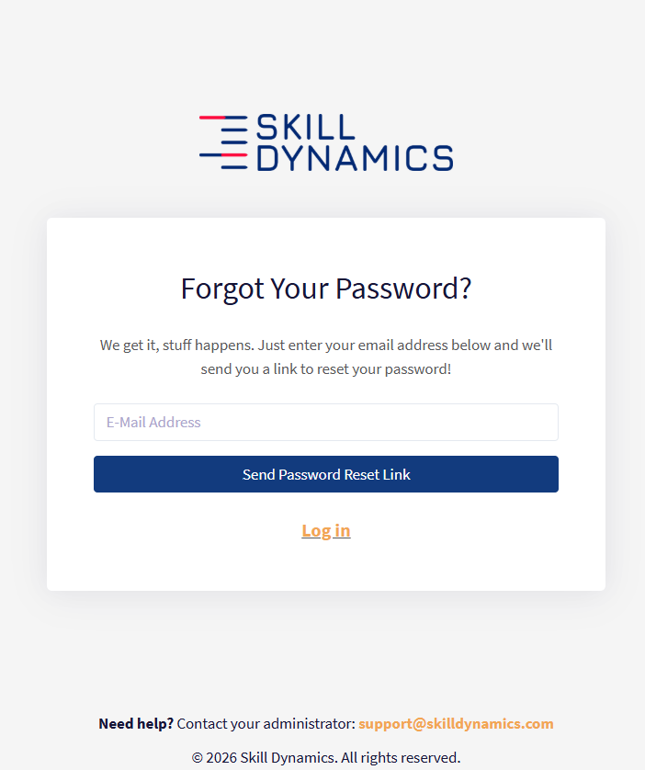
- Enter your registered email address. On the Forgot Your Password? page, enter the email address linked to your Skill Dynamics account, then select Send Password Reset Link.
Screenshot: Forgot Your Password page where learners request the password reset link.
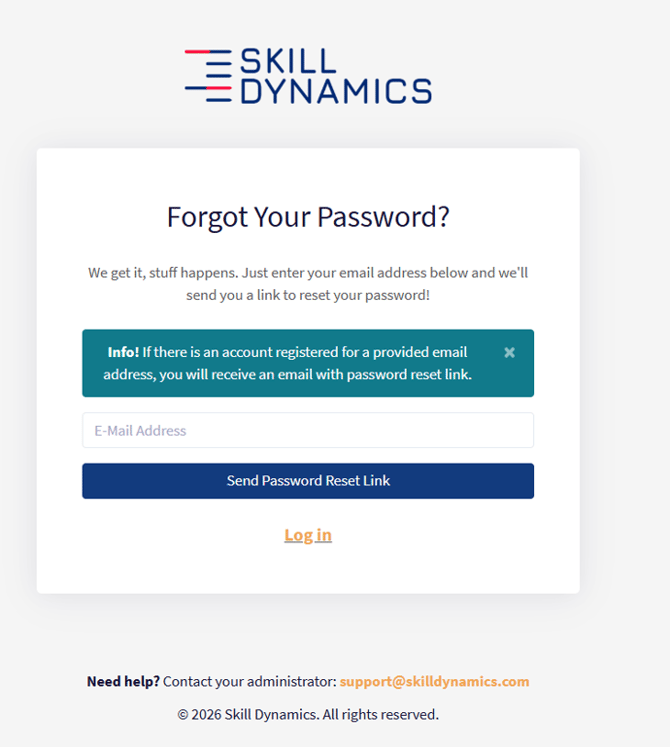
- Check the confirmation message. After selecting Send Password Reset Link, a confirmation message will appear. The reset instructions will be sent to your email address.
Screenshot: Confirmation message after requesting the password reset link.
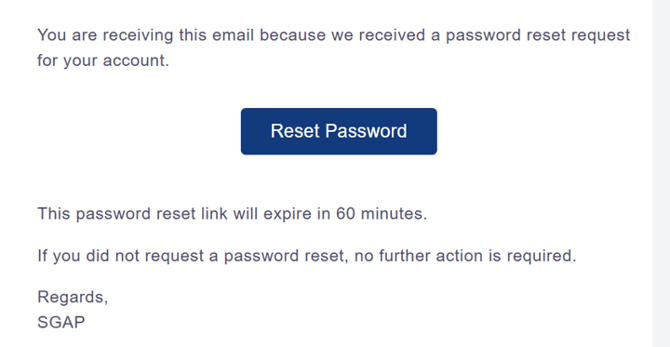
- Open the password reset email. In the email, select the Reset Password button. You will be redirected to the password reset page.
Screenshot: Password reset email with the Reset Password button.
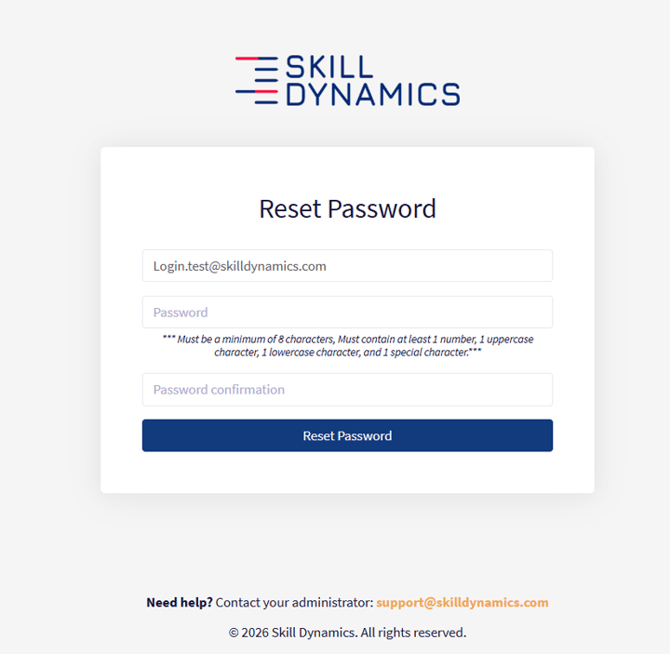
- Create and confirm your new password. Enter your new password, enter it again in the password confirmation field, then select Reset Password to complete the process.
Password rule
Your password must contain at least 8 characters, including at least 1 uppercase letter, 1 lowercase letter, 1 number, and 1 special character.Screenshot: Reset Password page where learners create and confirm a new password.
- Log in with your new password. Return to the login page and sign in using your registered email address and the new password.
Password reset email not received
If you requested a reset link but did not receive the email, try the checks below before contacting Support.
- Check your Spam, Junk, or email quarantine folder.
- Confirm that you entered the same email address registered to your Skill Dynamics account.
- Wait a few minutes, then try requesting the password reset link again.
- If the email still does not arrive, contact Skill Dynamics Support at support@skilldynamics.com.
If you still need help
Please contact Skill Dynamics Support at support@skilldynamics.com and include the details below so the team can investigate quickly:
|
Subject: Unable to Access My Account |