
Overview
This article explains how to access the Skill Dynamics Content Enablers LMS as a Supervisor. The Customer Success team will formally hand over the Supervisor’s details. This must be accessed with the URL and login details given.
Applies to
This article applies to client LMS Supervisors, implementation, and deployment teams.
Before you start
- The Customer Success team has completed the environment handover.
- You have received the custom URL.
- An LMS Supervisor account has been created and activated for you.
Steps to follow
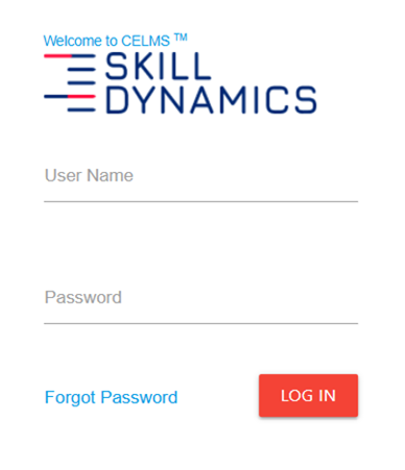
1. Login: Login using given URL and Admin login credentials.
URL: https://lms.contentenablers.com/
Screenshot: Login Page.
2. Supervisor Home Page: On successful Supervisor login, the bpage will be redirected to the LMS Home page.
Screenshot: Supervisor Home Page
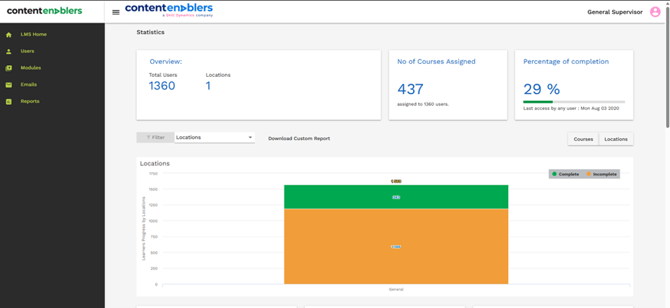
The Supervisor Dashboard provides a centralized view of learner activity and course progress.
Key Features:
- Overview – Displays the total number of users and locations assigned to the supervisor.
- No. of courses assigned – Shows the total number of courses assigned to learners.
- Percentage of completion – Displays the overall completion rate of assigned courses.
- Filter options – Allows supervisors to filter data by location.
- Download custom report – Enables the download of learner progress reports.
- Course and location views – Provides different views for analyzing learner performance.
- Progress chart – Displays completed and incomplete course statistics in a graphical format.
- Quick access lists – Provides links to:
- Completed courses
- Incomplete courses
- Inactive users
The Supervisor Dashboard helps supervisors efficiently track learner engagement, monitor training progress, and generate reports for their teams.
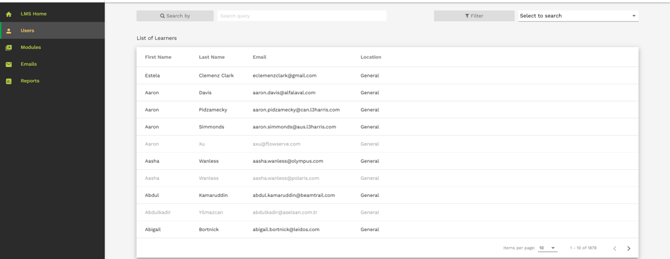
Screenshot: Supervisor Users page displaying list of learners.
4. Modules: The Dashboard displays contracted courses along with enrollment statistics who fall under this Supervisor. It provides a summary of the total number of users enrolled and their completion status. Completion progress is shown through completed, incomplete, and percentages for quick tracking.
Screenshot: Supervisor Module page.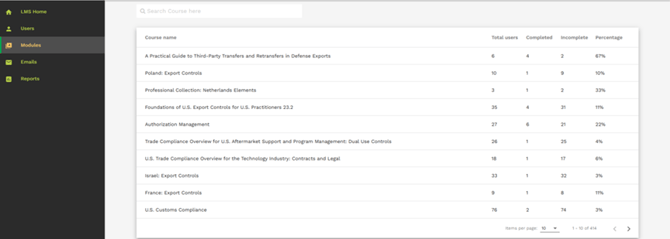
5. Email: Under the Emails tab, supervisors can create, customize, and modify automated email templates.
Screenshot: Supervisor Email page.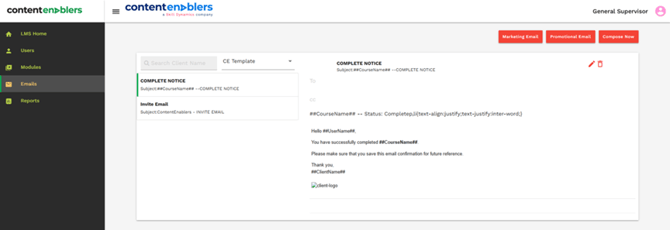
6. Reports: This provides complete user listing for auditing, tracking, and administrative purposes. The downloaded Excel file contains consolidated user information regardless of whether they are assigned to a supervisor.
Screenshot: Supervisor Reports page.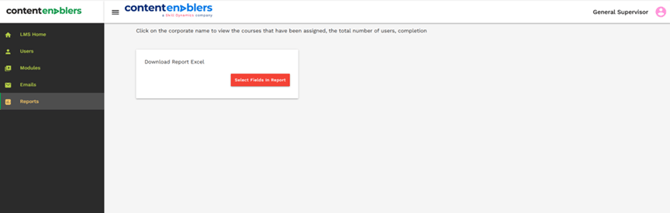
Common reasons you may not be able to continue
- Your username or password may be incorrect or expired. Verify your credentials and try again.
- Your account may not have the required administrator role or permissions. Contact the system owner or administrator for assistance.
- Cached data or unsupported browser settings may interfere with access. Clear your browser cache and cookies, then try again.
- Invitation email subject line
- Screenshot of the page or message shown
- Full name
- Work email address
- Company name
- Screenshot of the issue or error message
- Date and time the issue occurred
- Browser and device used
If you still need help
Please contact Skill Dynamics Content Enablers Support at support@contentenablers.com and include the details below so the team can investigate quickly:
- Invitation email subject line
- Screenshot of the page or message shown
- Full name
- Work email address
- Company name
- Screenshot of the issue or error message
- Date and time the issue occurred
- Browser and device used