
Overview
The Course Statistics Report enables administrators and supervisors to create customized reports on learner progress, course completion, and assessment performance, providing valuable insights into training activities and learning outcomes.
Applies to
This article applies to LMS administrators, Supervisors, learning coordinators to access LMS and to generate a Status Report.
Before you start
- You have the required permissions to access reporting features.
- Learners are enrolled in courses and have activity data available.
- Course and assessment records have been updated and completed as needed.
- You know which learner, course, or assessment fields you want to include in the report.
Steps to follow
The Course Statistics Report window allows administrators and supervisors to generate Reports by selecting the fields they want to include.
1. Navigate to the Reports section.
Screenshot: Reports Page.
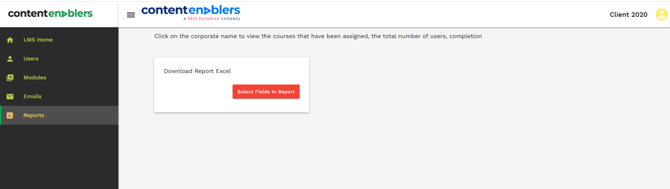
2. Click on the Select Fields in Report to open Course Statistics Report page.
3. Select the required report fields by checking the corresponding checkboxes.
Screenshot: Course Statistics Report Page.
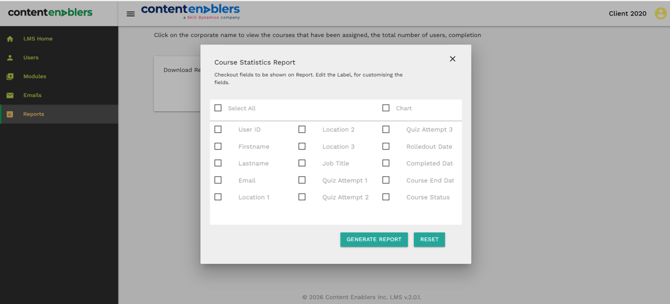
4. Select All to include all the fields in the report.
5. To include graphical data in the report, please select charts.
6. Click on GENERATE REPORT.
7. The system generates and downloads the report based on the selected criteria and fields.
8. Administrator Account:
a. Generates a consolidated report across all Business Units and Supervisors.
b. Includes learner data from all supervisors within the platform.
9. Supervisor Account:
a. Generates a report containing only the learners assigned to that specific supervisor.
b. Provides visibility into learner progress and completion status within the supervisor's assigned group.
- Use Reset to clear all selected fields and start over.
- Select only the fields required for your analysis to create a more focused report.
- Report generation may take a few moments depending on the amount of data included.
Common reasons you may not be able to continue
- Your account may not have access to reporting functionality or the selected report.
- The selected filters may not match any learner activity or course enrollment records.
- Generating reports for a large number of learners or courses may require additional processing time.
- Report export functionality may be restricted based on user permissions or system configuration.
If you still need help
Please contact Skill Dynamics Content Enablers Support at support@contentenablers.com and include the details below so the team can investigate quickly:
- Invitation email subject line
- Screenshot of the page or message shown
- Full name
- Work email address
- Company name
- Screenshot of the issue or error message
- Date and time the issue occurred
- Browser and device used