
Overview
Learners access the Skill Dynamics platform for the first time from the invitation email sent by Skill Dynamics. They must finalize their profile, complete registration, and submit their assessment before accessing the dashboard or continuing to the learning platform.
Applies to
Learners who have received a Skill Dynamics invitation email.
Before you start
- Look for an email from Skill Dynamics <noreply@skilldynamics.com>.
- The subject line is: Skill Dynamics - You have been invited to review your skills.
- If the email is not in your Inbox, check your Spam or Junk folder.
- If your organisation uses Single Sign-On (SSO), you may not need to create a Skill Dynamics password. After registration, sign in using your internal company credentials
Steps to follow
- Open the invitation email. The email includes a welcome message and instructions to help you get started.
Screenshot: Invitation email with the Finalize Your Profile button.
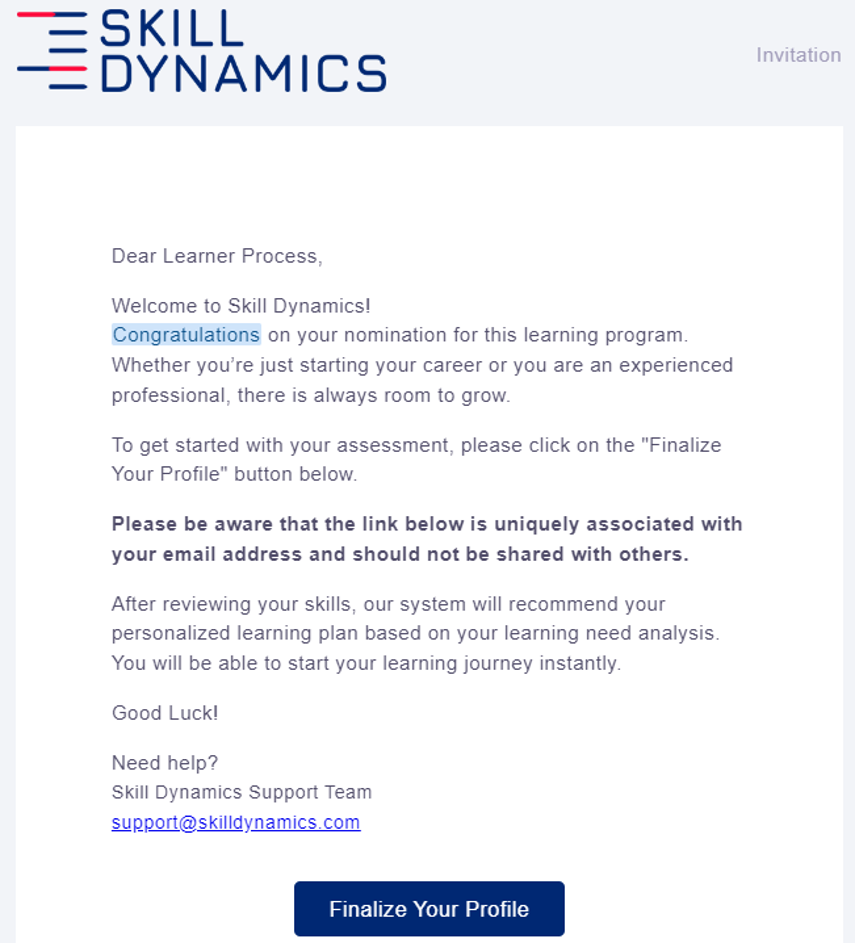
- Select Finalize Your Profile. This opens the registration page where your profile information is displayed.
Screenshot: Registration page where learners finalize their profile.
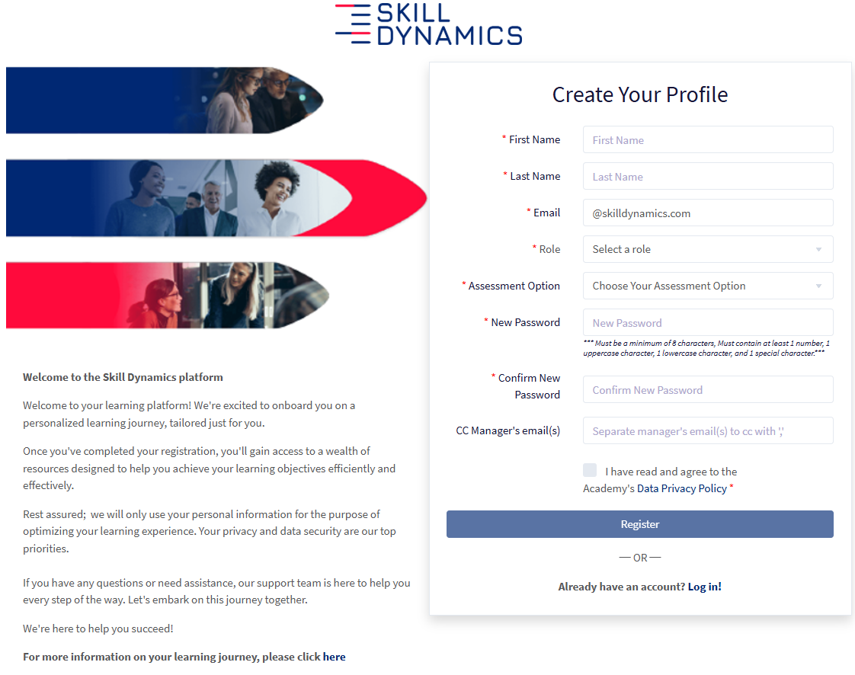
- Review your pre-filled registration details. These details are based on the information provided by your management team during onboarding. If any details are incorrect, contact Skill Dynamics Support or your Academy Coordinator before continuing.
- Create your password and accept the Academy Data Privacy Policy. If SSO is enabled for your organisation, you may skip the password step and use your internal credentials instead.
- Select Register. A confirmation email will be sent to confirm that your profile has been finalized. After registration, you will be directed to the Assessment page.
- Complete your assessment. The assessment usually takes 60 to 90 minutes if completed in one sitting. You can stop and resume later; only the last fully completed page is saved. You must answer every question on a page before moving to the next page.
Screenshot: Assessment page.
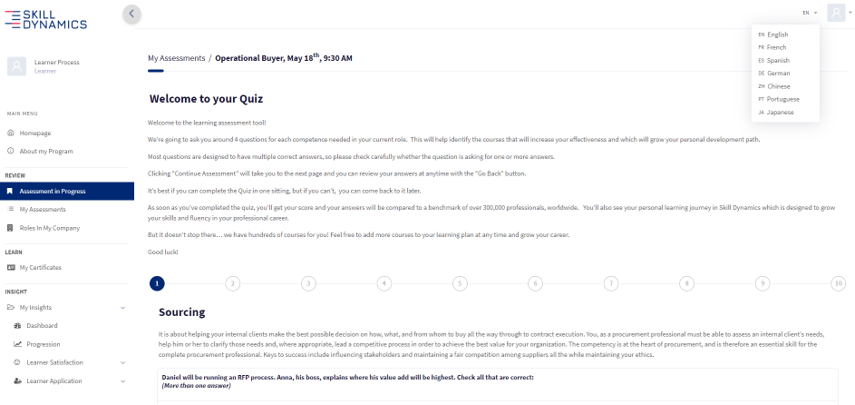
- Use the translation option if needed. To translate the questions and answers, select your preferred language from the top-right corner of the assessment page.
- Submit your assessment results. On the final page, select Submit Assessment to view your assessment results.
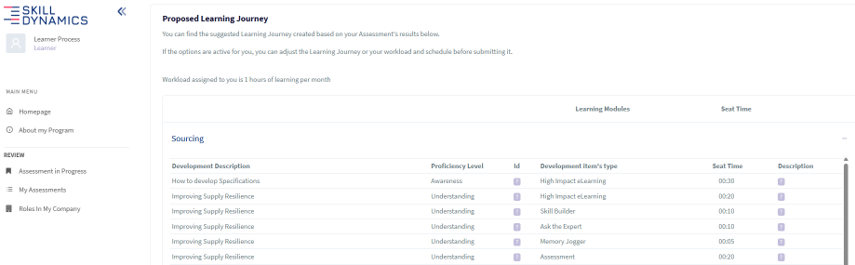
- Submit your proposed Learning Journey. The proposed Learning Journey appears at the bottom of the Finalize Your Assessment page. Select Submit at the bottom of the page to confirm it.
Screenshot: Proposed Learning Journey section on the Finalize Your Assessment page.
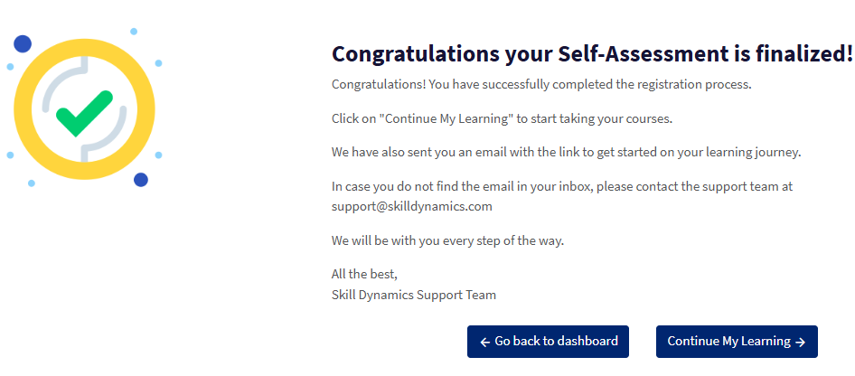
- Choose where to go next. After registration is completed, select Go back to dashboard to access your homepage, or Continue My Learning to open the SDX e-learning platform and begin your courses.
Screenshot: Registration completed page with dashboard and learning options.
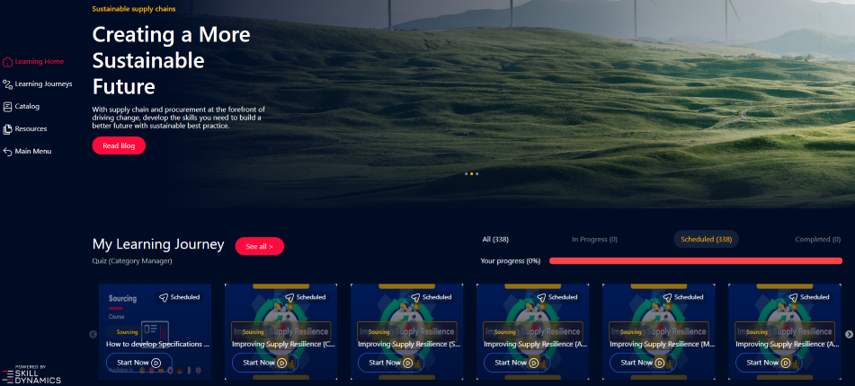
Screenshot: Learn / Training dashboard.
Common reasons you may not be able to continue
- The invitation email is in your Spam or Junk folder.
- One or more registration details need to be updated before you continue.
- Your organisation uses SSO, so you must sign in with your internal company credentials after registration.
- A page in the assessment is incomplete. You must answer all questions on the page before moving forward.
If you still need help
Please contact Skill Dynamics Support at support@skilldynamics.com and include the details below so the team can investigate quickly:
- Invitation email subject line
- Screenshot of the page or message shown
- Full name
- Work email address
- Company name
- Screenshot of the issue or error message
- Date and time the issue occurred
- Browser and device used