
Overview
Your learning plan is available from the Learn Home page. It is shown under My Learning Journey, where you can view all assigned courses, start scheduled courses, continue courses in progress, and revisit completed courses.
Applies toLearners with an assigned Skill Dynamics learning plan.
Before you start
- Make sure you can sign in to the Skill Dynamics platform.
- If this is your first time accessing the platform, finalize your profile and submit your assessment first.
- Your learning plan may only appear after it has been assigned or generated for your programme.
Steps to follow
- Open SDX and select Continue My Learning. This takes you to the Learn Home page/training dashboard, where you can access your assigned courses.
Screenshot: Learn Home page / training dashboard.
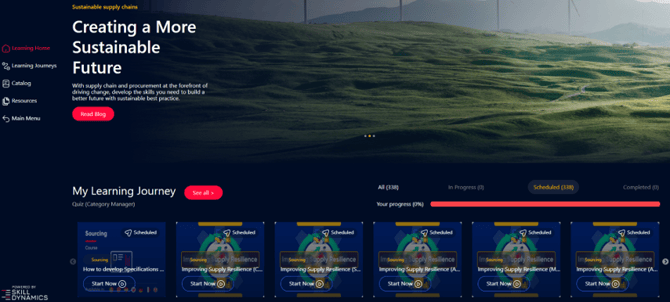
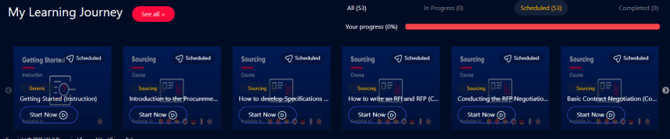
- Review the My Learning Journey sections. The My Learning Journey area is divided into All, In Progress, Scheduled, and Completed.
Screenshot: My Learning Journey sections.

- All: shows the total courses assigned to you.
- In Progress: shows courses that have been started but not completed.
- Scheduled: shows assigned courses that have not been started.
- Completed: shows courses that have been fully completed. You can relaunch completed courses if needed.
- Start a course. Select Start Now on the course you want to launch.
Screenshot: Start Now button in the Learning Journey.
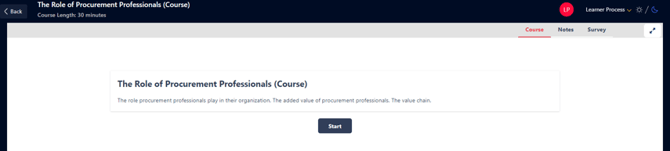
- Review the course description and select Start. A course description will appear before the course opens. Select Start to begin.
Screenshot: Course description page with the Start button.
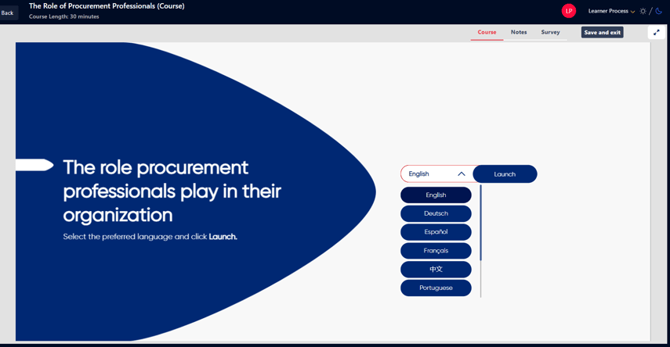
- Select your preferred language and launch the course. Choose the language you want to use, then select Launch or Continue. Thai and Vietnamese are available only for Supply Chain courses.
Screenshot: Language selection and course launch page.
- Use learning support features while taking the course. Depending on the course, you may see subtitles, transcripts, and audio options at the bottom of the page.
- Save your progress before exiting. When you finish or stop a course, select Save and exit to make sure your progress is saved.
- Complete the course survey when available. After completing a course, you can select Survey to share feedback. The survey is not mandatory, but it helps Skill Dynamics and your management team improve the learning experience. Each survey contains 10 questions.
Related learning areas
The platform also includes related areas that may appear while you are using your learning plan. These areas are useful, but your assigned learning plan should remain the priority.
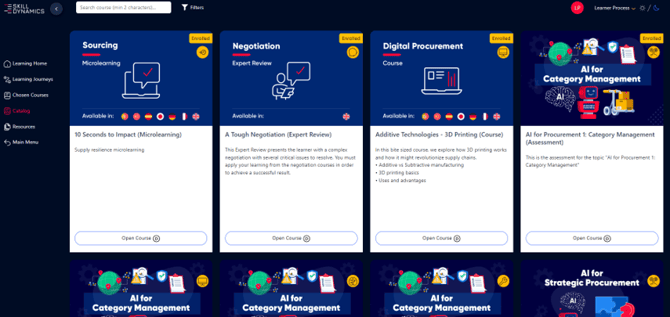
- Catalog: explore additional Procurement and/or Supply Chain modules. Courses already assigned to you are highlighted in yellow and labelled Enrolled.
- Chosen Courses: view courses you enrol in from the Catalog.
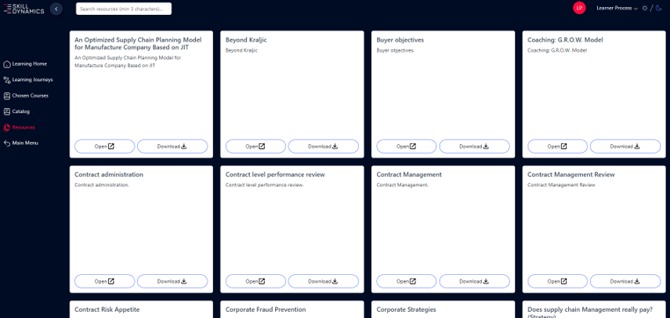
- Resources: access course notes, videos, templates, and articles.
- Main Menu: return to your homepage from the learning areas.
Screenshot: Catalog tab for additional course exploration.
Screenshot: Chosen Courses area for additional enrolled courses.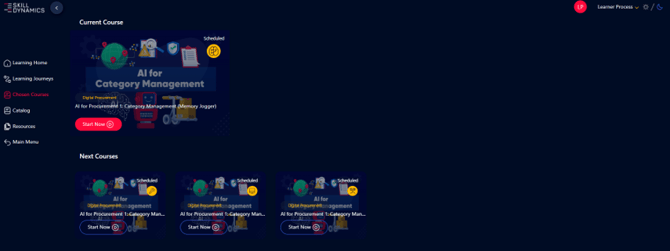
Screenshot: Resources tab for course notes and articles.
 Common reasons your learning plan may not appear
- Your assessment or registration has not been submitted yet.
- Your learning plan has not yet been assigned or generated.
- You are looking in the Catalog instead of your assigned My Learning Journey area.
If you still need help
Please contact Skill Dynamics Support at support@skilldynamics.com and include the details below so the team can investigate quickly:
- Learning plan name, if known
- Course name, if a course is missing
- Full name
- Work email address
- Company name
- Screenshot of the issue or error message
- Date and time the issue occurred
- Browser and device used