
Overview
The Manage Insight section gives managers access to reports that help monitor learners' development. These reports can be used to track learning plan progress, completed courses, outstanding activities, learner satisfaction, knowledge application, and competence improvement.
Applies to
- Managers with access to the Skill Dynamics platform.
- Managers who have been given permission to view learner reporting data.
- Managers who need to follow up on learner progression or identify learners requiring support.
Before you start
- Make sure you can log in to your Skill Dynamics account.
- If your organisation uses Single Sign-On (SSO), use your company credentials to access the platform.
- The learners and reports you can view depend on your manager profile, reporting permissions, and company setup.
Steps to follow
1. Log in to your Skill Dynamics account. Open the platform link and sign in using your registered email address and password, or your SSO credentials if SSO is enabled for your organisation.
2. Open the Main Menu. From your homepage, select the Main Menu in the top-left corner of the screen.
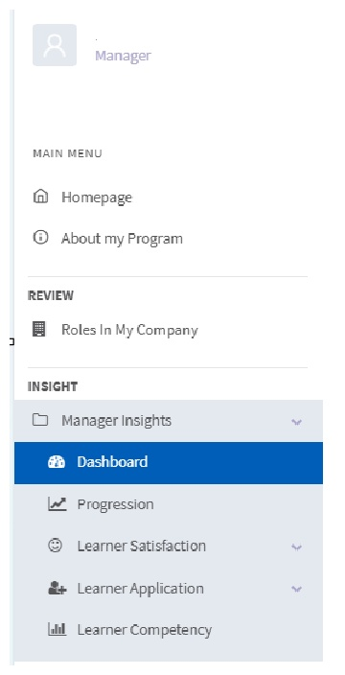
3. Go to Manager Insight. Under the Insight section, select Manage Insight. A drop-down menu will show the reporting areas available to you, including Dashboard, Progression, Learner Satisfaction, Learner Application, and Learner Competency.
Screenshot: Manager Insight menu for managers.
|
Note This article focuses on learner reports. The Dashboard option may also be available, but the dashboard experience is covered separately in the Skill Dynamics experience article. |
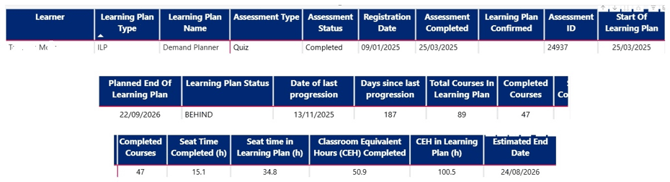
4. Open the Progression report. Select Progression to view learner progression from registration through to learning plan completion. This report helps you identify learner status, completed activities, and items that may require follow-up.
Screenshot: Manager Progression report.
 Using filters
At the top of the report, use the available filters to refine the information displayed. Select Advanced to show additional filters and narrow the report by fields such as learner, company structure, assessment details, or learning plan information.
Screenshot: Advanced filters on the manager report.
Viewing the detailed report
From the Progression report, select Show Detailed Report to view each learner's learning plan in more detail, including the courses included in the learning plan and the status of each course. To return to the main view, select Back to General Report.
Screenshot: Detailed manager report view.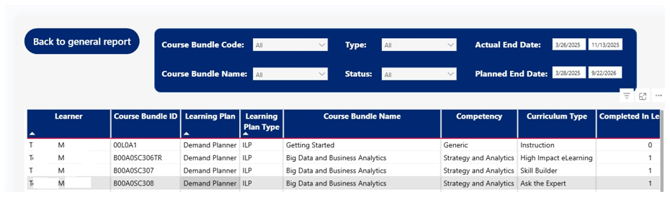
Understanding key Progression report fields
|
Field |
What it means |
|
Learner |
Shows the name of the learner included in the report. |
|
Learning Plan Type |
Shows whether the plan is an Initial Learning Plan (ILP) or Continuous Learning Plan (CLP). |
|
Learning Plan Name |
Shows the name of the learner's learning plan. |
|
Assessment Type |
Shows the type of learning option assigned, such as Quiz, Standard Learning Plan, or Catalogue. |
|
Assessment Status |
Shows whether the learner's assessment is Not Started, In Progress, or Completed. |
|
Registration Date |
Shows the date the learner was invited to register. |
|
Assessment Completed |
Shows the date the learner completed the assessment. |
|
Learning Plan Confirmed |
Applies only when Manager Review is used. It shows when the learning plan was reviewed and approved. |
|
Learning Plan Status |
Shows the learner's overall progression status, such as Behind or Completed. |
|
Date of Last Progression |
Shows the last date the learner progressed in a course. |
|
Completed Courses |
Shows the number of courses completed by the learner. |
|
Seat Time / CEH |
Shows the training time and credit equivalent hours completed or assigned. |
|
Estimated Plan Date |
Shows the estimated end date based on the learning plan schedule. |
Learner Satisfaction Report
Select Learner Satisfaction to review learner feedback linked to course surveys. This section includes Survey Questions and Survey Answers. The report can show satisfaction results grouped by feedback category, such as Great, Neutral, or Bad, and may also include open-text survey responses.
Screenshot: Learner Satisfaction report menu for managers.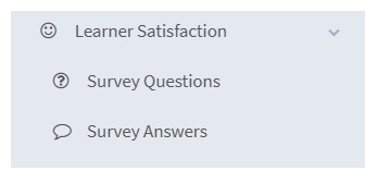
Screenshot: Learner Satisfaction report example.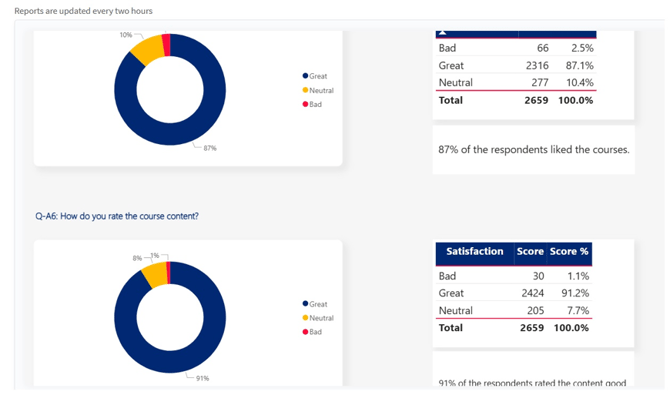
Learner Application report
Select Learner Application to review how learners apply knowledge and skills gained from their courses. This section includes Survey Questions and Survey Answers and helps managers understand application of learning in day-to-day work.
Screenshot: Learner Application report menu for managers.
Screenshot: Learner Application report example.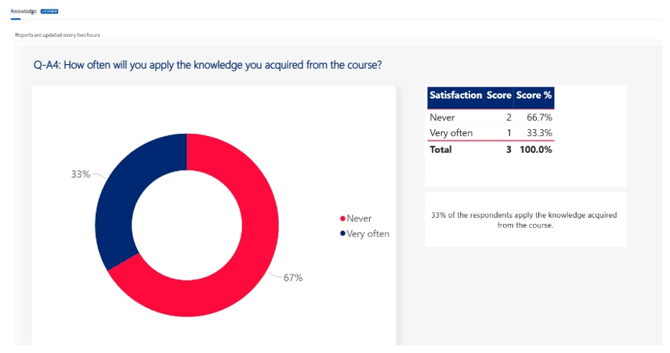
Learner Competency report
Select Learner Competency to review competence improvement across learners. This report shows progress from the initial level towards the target level across the competences included in the learning journey.
Screenshot: Learner Competency report example.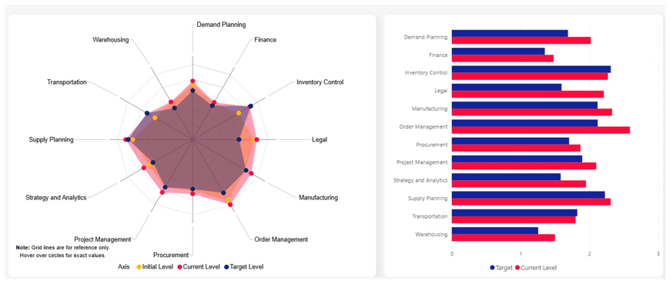
Searching for a specific learner
Use the Advanced filter to search for a specific learner or narrow the report to a specific group. This is useful when you need to follow up on an individual learner or review competence improvement for a selected learner.
Screenshot: Advanced filter used to search learner reporting data.
Additional report options
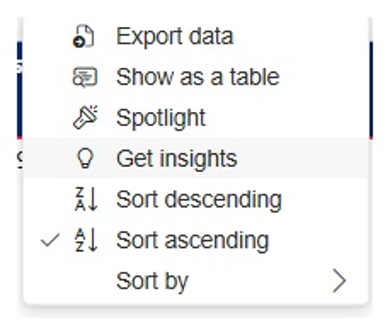
Some report visuals include extra options when you hover over a report area or select the three-dot menu. Depending on the report, these options may allow you to expand the visual, focus on a specific view, drill down into the data, sort information, or export data.
Screenshot: Additional report options.
Need help?
If you cannot access Manage Insight, cannot see expected learners, or believe the information in a report is incorrect, contact the Skill Dynamics Support Team at support@skilldynamics.com or reach out to your Academy Coordinator.