
Overview
When a learner completes the registration and assessment process, their proposed learning plan is sent to you for review. You can review the suggested courses, add or remove courses where necessary, and then confirm the learning journey. The learner can proceed with the assigned learning journey after your confirmation.
Before you start
• The learner must complete their registration and assessment before the learning plan is available for review.
• Use the Manager area to identify assessments that are waiting for review.
• Review the proposed learning plan carefully before confirming it, as you can add or remove courses during the review.
Find a learning plan that is waiting for review
1. Open the Manager dashboard. After logging in as a manager, open the Assessments area.
2. Identify an assessment waiting for review. The dashboard highlights assessments that require your review. Use the Review Assessment option to open the learner’s learning plan.
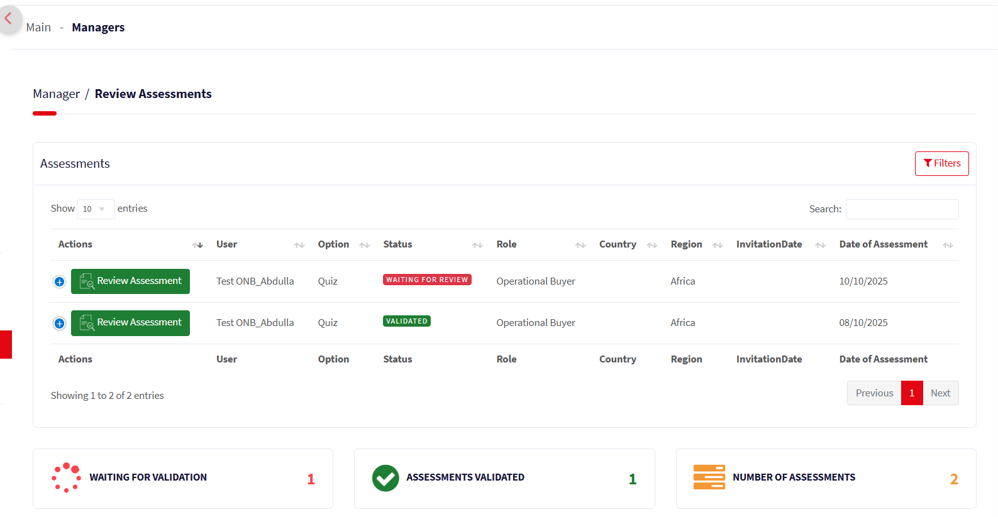
Screenshot: Manager Assessments page highlighting a learning plan that is waiting for review.
Review the learner’s proposed learning plan
The Learning Plan Review page shows the learner’s assessment results and the proposed learning journey. Review the suggested competencies and courses before making any changes.
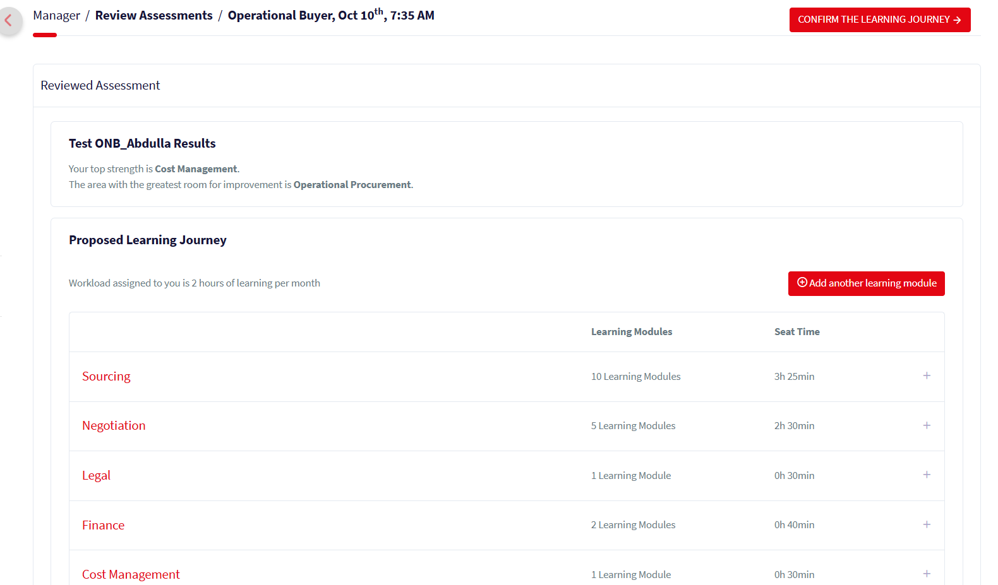
Screenshot: Learning Plan Review page with the proposed learning journey.
Add courses to the learning plan
1. Click Add Another Learning Module. This opens the course selection page.
2. Select the required courses. Check the box next to each course you want to add, then click Add Selected.
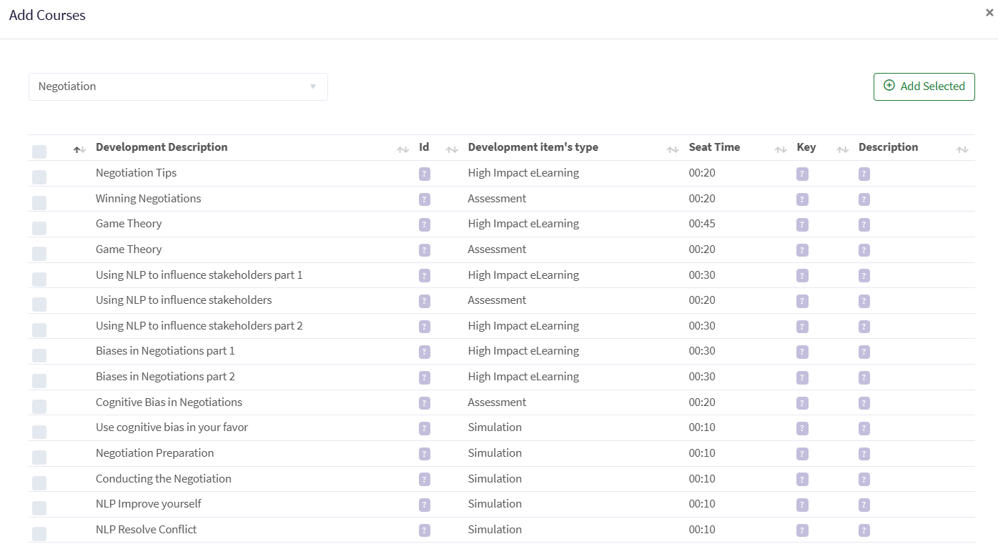
Screenshot: Course selection page for adding learning modules to the learning plan.
Courses are organised by competence. Use the competence dropdown in the top-left corner to browse courses from another competence.
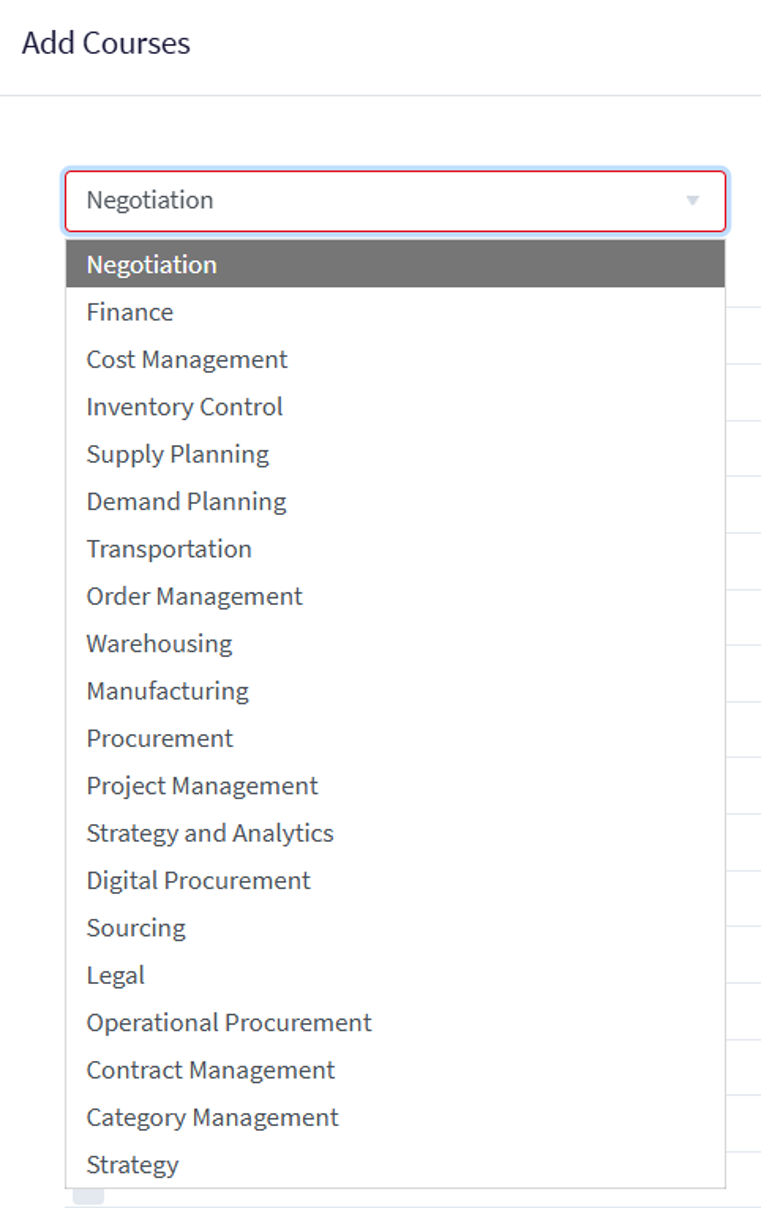
Screenshot: Competence dropdown used to browse available courses.
Remove courses from the learning plan
1. Open the relevant competence. Select the competence containing the course or courses you want to remove.
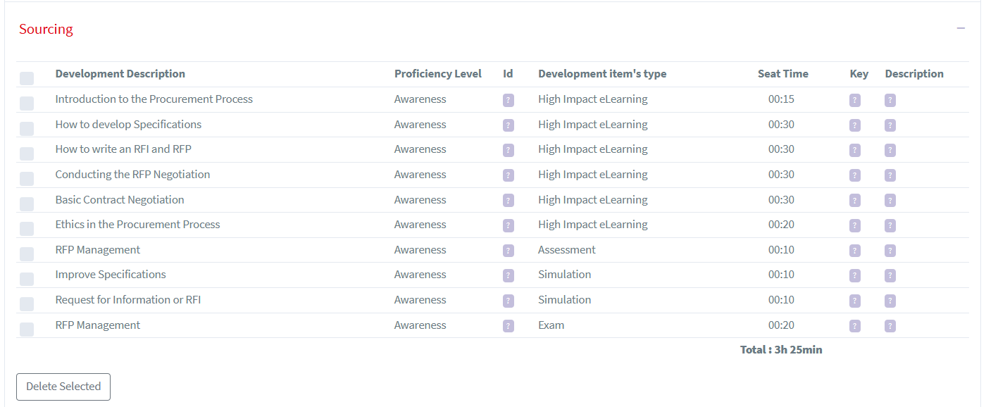
Screenshot: Courses displayed within a selected competence.
2. Select the courses to remove. Check the box next to each course that is not required.
3. Click Delete Selected. The selected courses will be removed from the learning plan.
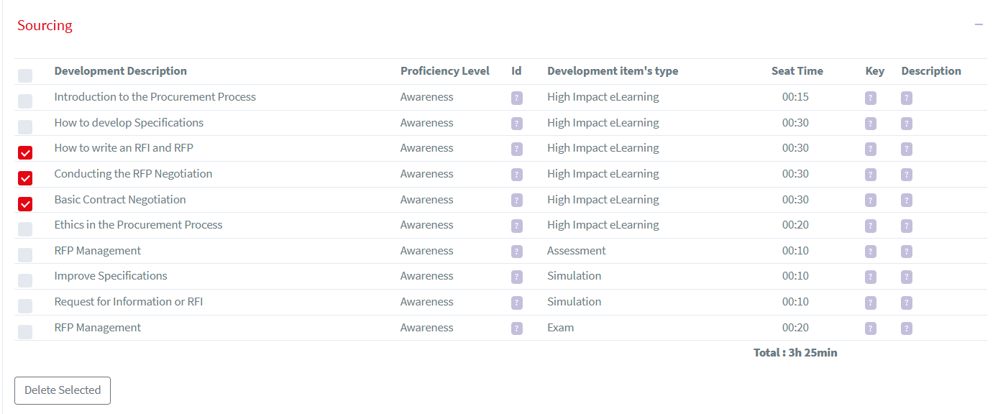
Screenshot: Selected courses ready to be removed using Delete Selected.
Confirm the learning plan
When you have finished reviewing the learning plan and are satisfied with the selected courses, click Confirm the Learning Journey.
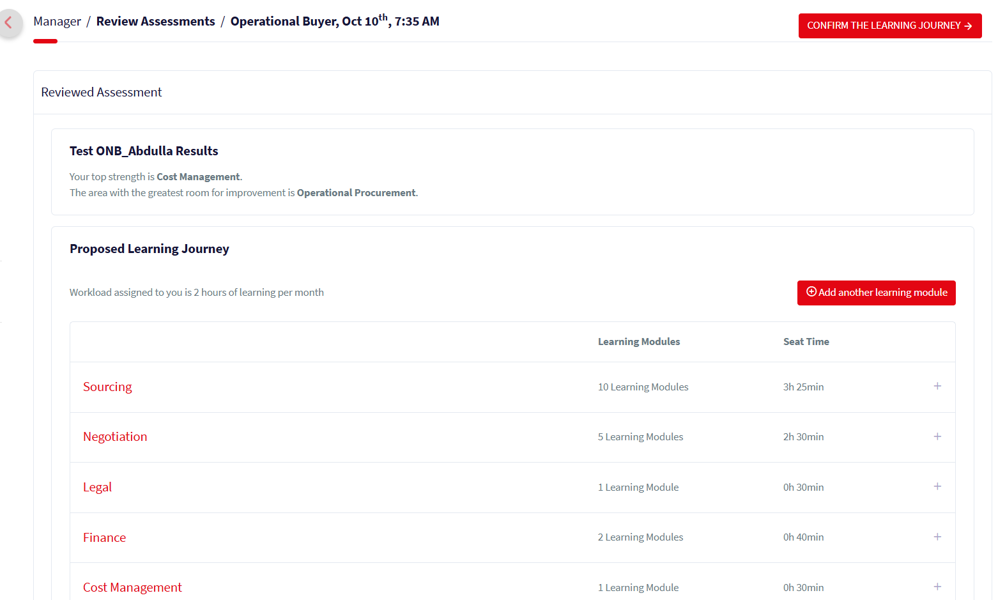
Screenshot: Learning Plan Review page with the Confirm the Learning Journey option.
After confirmation, a Thank You message is displayed. Select Go To Homepage to return to the Manager Dashboard.
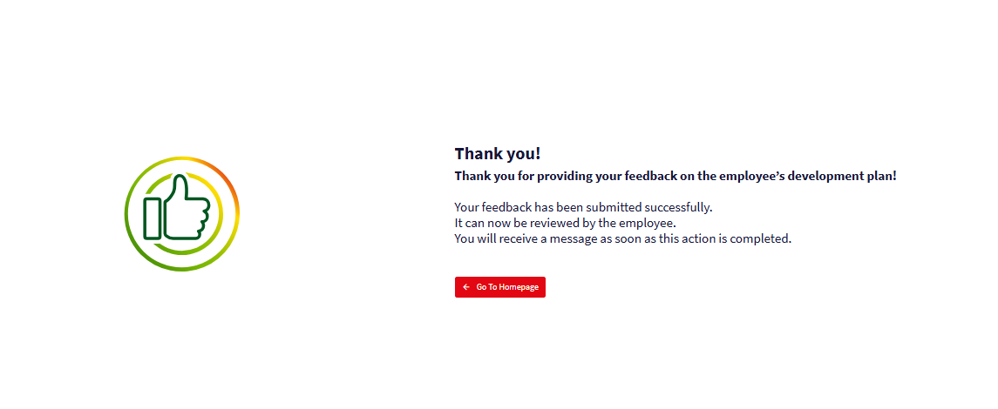
Screenshot: Confirmation message displayed after the learning plan has been confirmed.
What happens next?
• The learner’s assessment moves out of the waiting-for-review stage after the learning plan is confirmed.
• The learner can then continue with the approved learning journey.
Important notes
• Add only courses that are relevant to the learner’s development needs.
• Remove courses that are not required before confirming the learning journey.
• Courses can be browsed by competence when adding learning modules.
• Confirm the learning journey only after you have completed your review.