
Overview
Learner invitation and deactivation requests must be submitted to Skill Dynamics Support by the Academy Coordinator. This helps ensure that learner records are created or updated accurately and that the correct customer approval is in place.
Academy Coordinators can request new learner invitations, learner deactivations, or both actions in the same email request, provided the instructions are clear.
Applies to
• Academy Coordinators who need to add learners to the Skill Dynamics platform.
• Academy Coordinators who need to remove or deactivate learners from the platform.
• Managers who need to understand the approval route for learner changes.
Before you start
• Requests to add or remove learners should be submitted by the Academy Coordinator.
• If a request is sent by a manager or learner, it will be forwarded to the Academy Coordinator for approval before it can be processed.
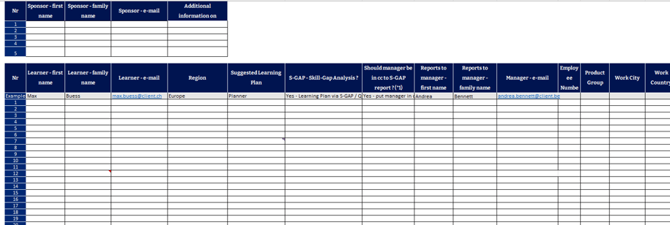
• For new learner invitations, the Registration File must be completed and attached to the email request.
• For learner removals or deactivations, include enough information to identify the correct learner profile, including the learner’s email address.
What information should be included?
Request type |
Who should submit it |
Information to include |
Add learner(s) |
Academy Coordinator |
Completed Registration File and clear learner details, including email address and learning plan information. |
Remove or deactivate learner(s) |
Academy Coordinator |
Learner full name, email address, employee ID if available, and any other details needed to identify the correct profile. |
Add and remove learners in one request |
Academy Coordinator |
Clear instructions showing which learners should be invited and which learners should be deactivated. |
How to request new learner invitations
1. Complete the Registration File. Add the learner details required for the invitation, including the learner’s email address and the relevant learning plan information.
2. Send the request to Skill Dynamics Support. The Academy Coordinator should email support@skilldynamics.com and attach the completed Registration File.
3. Support checks the information. The Support Team will verify that the Registration File has been completed correctly and that all required information has been provided.
4. Learner invitations are sent. Once the request is processed, invitations are sent directly to the learners using the email addresses provided in the Registration File.
5. Support confirms completion. After the invitations have been processed, the Support Team will send a confirmation email to the Academy Coordinator.
Screenshot: Example of the Registration File used to provide learner details.
Email template to add learners
|
Email subject: Request to Add New Learners to the Platform Dear Support Team, I hope you are doing well. Please find attached the Registration File containing the details of the new learners to be added to the platform. Kindly proceed with the invitation process. Please let me know if any additional information or clarification is required. Thank you. Best regards, |
How to request learner removal or deactivation
1. Prepare the learner details. Include the learner’s full name, email address, employee ID if available, and any other relevant details needed to identify the correct profile.
2. Send the request to Skill Dynamics Support. The Academy Coordinator should email support@skilldynamics.com and clearly request learner deactivation.
3. Attach a file if multiple learners need to be deactivated. If several learners are included, the Registration File can be used, but the email must clearly specify which learners should be deactivated.
4. Support confirms completion. Once deactivation has been completed, the Support Team will notify the requestor to confirm that the action has been processed.
Email template to remove or deactivate learners
|
Email subject: Request for Learner Deactivation Dear Support Team, I hope you are doing well. I would like to request the deactivation of the following learner(s) from the system: Full Name: [Insert Name] Email Address: [Insert Email] Employee ID (if applicable): [Insert ID] Other relevant details / Registration File: [Attach file if applicable] Kindly confirm once the deactivation has been completed or if any additional information is required. Thank you for your support. |
How to request invitations and deactivations in the same email
You can include new learner invitations and learner deactivations in the same email. The request must clearly separate the learners to be invited from the learners to be deactivated.
If a Registration File is attached, the email must clearly indicate which learners in the file should be invited and which learners should be deactivated.
Email template for a combined request
|
Email subject: Request for Learner Invitation and Deactivation Dear Support Team, I hope you are doing well. Please find below the request for learner management actions on the system. 1. Learner(s) to be Invited: Full Name, Email Address, Employee ID (if applicable), Learning Plan Name. 2. Learner(s) to be Deactivated: Full Name, Email Address, Employee ID (if applicable). Alternatively, please find attached the Registration File. Please proceed with the invitations and deactivations clearly indicated in this request. Kindly confirm once the updates have been completed or if any additional information is required. Thank you for your support. |
|
Important |