
Overview
This article explains how to access the Skill Dynamics Content Enablers LMS as Amin/Supervisor to perform add and remove users.
Applies to
This article applies to client LMS Administrators, Implementation and Deployment teams, and Learning Coordinators.
Before you start
- Ensure learners exist in the LMS or new learners.
- All the courses are published and deployed in the LMS.
- All the prerequisites for enrollment are present.
Steps to follow
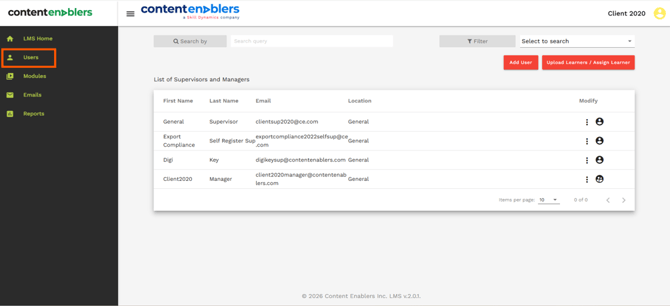
1. Select Users: After logging to Skill Dynamics Content Enablers LMS as Admin or Supervisor, Navigate to Users on the dashboard page.
Screenshot: User Page.
2. Add user: Select Add User and fill in the details required to enroll new learner. If there are multiple learners, then proceed with Upload Learner/Assign Learner.
Admin can add and remove Admin, Manager, Supervisor and Learner.
Screenshot: Adding individual user.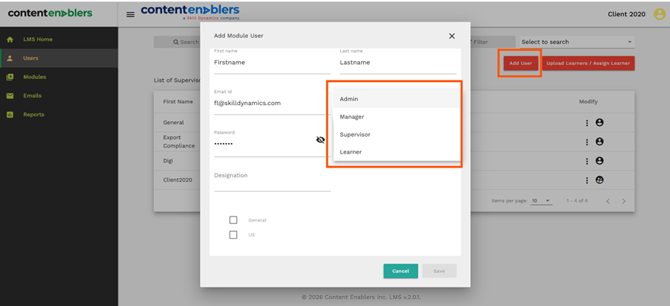
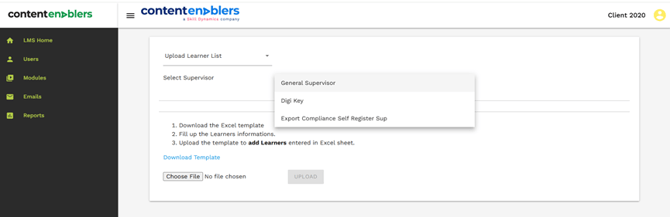
3. Use the Bulk User Upload option to add multiple users to the platform at once. After selecting this option, you will be redirected to the next page where you can choose one of the following actions:
4. Assign Courses to Learners – Upload an existing list of learners and assign one or more courses during the upload process.
5. Upload Learner List – Upload new learner details in bulk.
This feature helps administrators efficiently manage large numbers of users while reducing manual data entry
Screenshot: Adding bulk users.
6. How to Remove a Learner: The Learners under Supervisor page allows supervisors or administrators to manage learner accounts, including disabling a learner when access needs to be removed.
7. Go to Learners Under Supervisor.
8. Find the learner using Search or Filter if needed.
9. Click the More Options (⋮) icon in the Modify column.
10. Select Disable and confirm the action.
11. The learner account will be disabled and will no longer be able to access the LMS.
12. The learner's information remains in the system for reporting and auditing purposes.
Note: Disabling a learner removes their access to the platform while retaining their account records and learning history
13. The learner account will be disabled and will no longer be able to access the LMS.
14. The learner's information remains in the system for reporting and auditing purposes.
Screenshot: Adding bulk users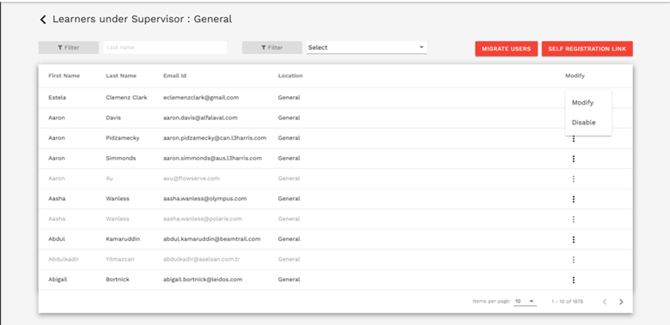
Common reasons you may not be able to continue
- Insufficient user information to enroll in.
- The account may already be disabled or may not exist in the current environment.
- Your account may not have authorization to modify user status.
- The user account may not exist or may not be active in the LMS.
If you still need help
Please contact Skill Dynamics Content Enablers Support at support@contentenablers.com and include the details below so the team can investigate quickly:
- Invitation email subject line
- Screenshot of the page or message shown
- Full name
- Work email address
- Company name
- Screenshot of the issue or error message
- Date and time the issue occurred
- Browser and device used