
Overview
Use the Forgot Password option on the Skill Dynamics Content Enablers login page to request a password reset email. After receiving the email, select Reset Password, create a new password, and use the new password to log in to your account.
Applies to
Learners who sign in to Skill Dynamics Content Enablers using an email address and password.
Before you start
- Use the email address registered to your Skill Dynamics Content Enablers account.
- Make sure you can access the inbox linked to your registered email address.
- Check your Spam, Junk, or email quarantine folder if the password reset email does not arrive in your Inbox.
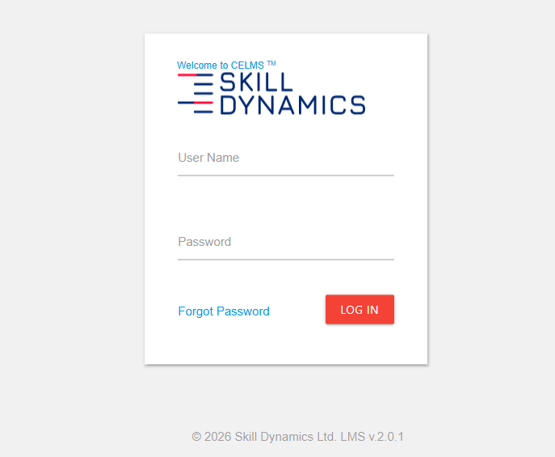
1. Open the Skill Dynamics Content Enablers login page: The login page contains the email address and password fields, the Log in button, and the Forgot Password? option.
Screenshot: Content Enablers Login page with Forgot Password option.
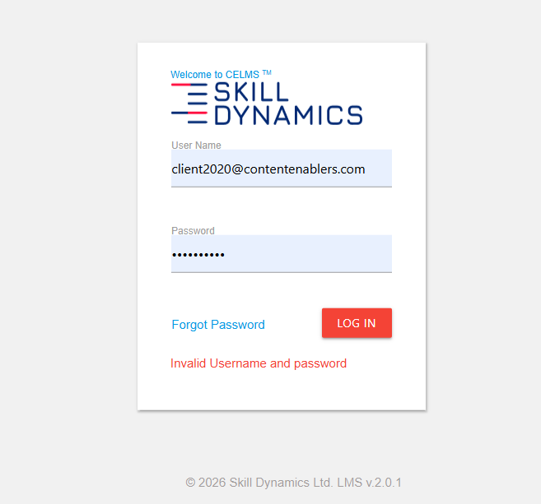
2. Select Forgot Password: If your login attempts fail because of invalid credentials, select Forgot Password next to the Log in button
Screenshot: Invalid Username and Password message.
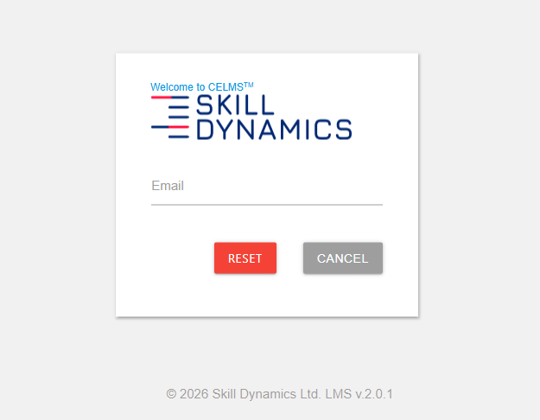
3. Enter your registered email address. On the Forgot Your Password page, enter the email address linked to your Skill Dynamics Content Enablers account, then click on RESET.
Screenshot: Forgot Your Password page where learners request the password reset link.
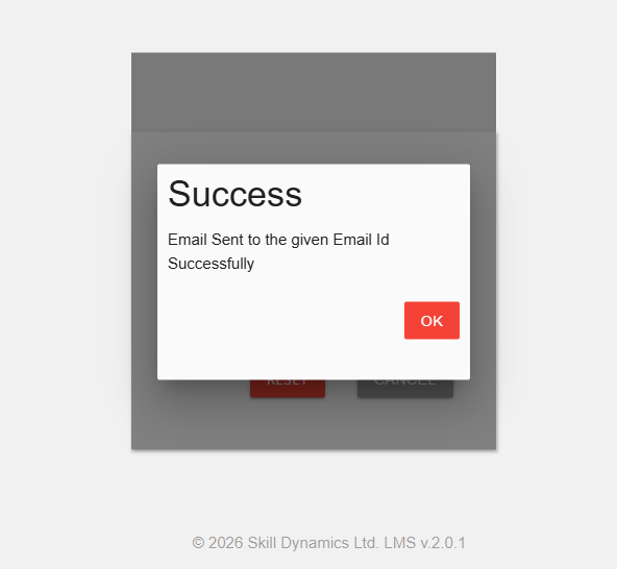
Screenshot: Success message after requesting the password reset.
5. Open the password reset email: In the email, select the Reset Password button. You will be redirected to the password reset page
Screenshot: Password reset email with the link to reset Password.
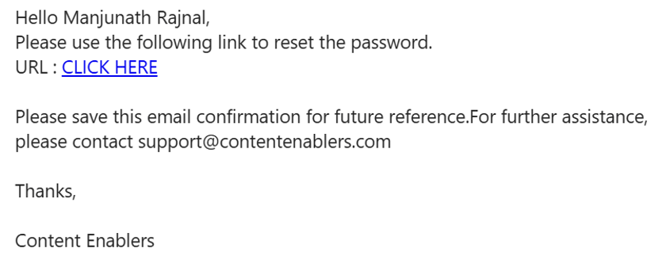
6. Create and confirm your new password: Enter your new password, enter it again in the password confirmation field, then select the SUBMIT button.
Screenshot: Reset Password page where learners create and confirm a new password.
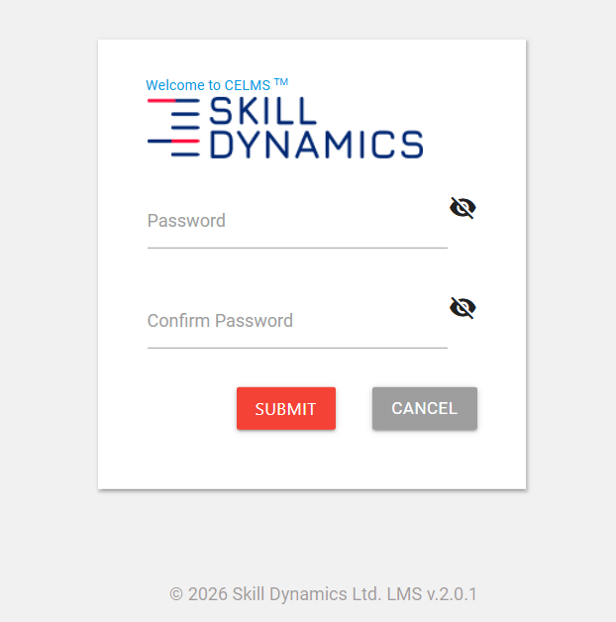
7. Log in with your new password: Return to the login page and sign in using your registered email address and the new password.
Password reset email not received
If you requested a reset link but did not receive the email, try the checks below before contacting Support
- Check your Spam, Junk, or email quarantine folder.
- Confirm that you entered the same email address registered to your Skill Dynamics Content Enablers account.
- Wait a few minutes, then try requesting the password reset link again.
- If the email still does not arrive, contact Skill Dynamics Content Enablers Support at support@contentenablers.com.
Example email to support
You can use the given example email when contacting Skill Dynamics Content Enablers Support.
Subject: Unable to Access MyAccount
Dear Support Team,
I am currently unable to access my Content Enablers account. I attempted to reset my password using the Forgot Password option, but I did not receive the password reset email.
Could you please assist me in regaining access to my account?
Name:
Company Name:
Email address:
Thank you.
Common reasons you may not be able to continue
- The email address entered does not match the email registered on your account.
- The reset email was filtered into Spam, Junk, or quarantine.
- The reset link expired before it was used.
If you still need help
Please contact Skill Dynamics Content Enablers Support at support@contentenablers.com and include the details below so the team can investigate quickly:
- Invitation email subject line
- Screenshot of the page or message shown
- Full name
- Work email address
- Company name
- Screenshot of the issue or error message
- Date and time the issue occurred
- Browser and device used