
Overview
Learners access the Skill Dynamics Content Enablers Storefront for the first time from the invitation email sent by Content Enablers after their purchase. They must access the login page with the URL and login details from the invitation mail.
Applies to
Learners who have logged into a Skill Dynamics Content Enablers Learning platform.
Before you start
- After logging into the Skill Dynamics Content Enablers website, follow the steps below to purchase the courses and access the Learning Platform to launch your courses.
Steps to follow
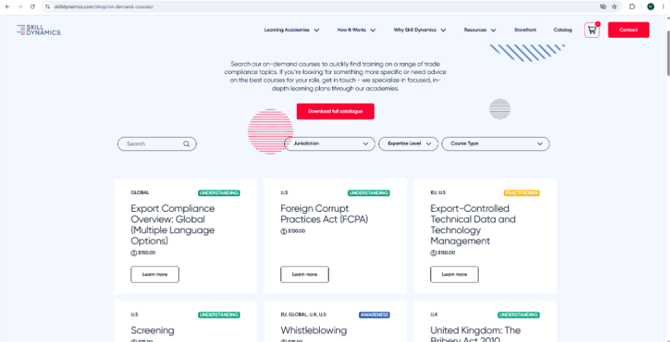
1. Browse the Course Catalogue: Navigate to the Skill Dynamics Content Enablers on-demand course store. Browse or filter the catalogue by Jurisdiction, Expertise Level, or Course Type.
Details: Locate the desired course card (e.g., Export Compliance Overview: Globally priced at $150.00).
Screenshot: Browse the Course Catalogue.
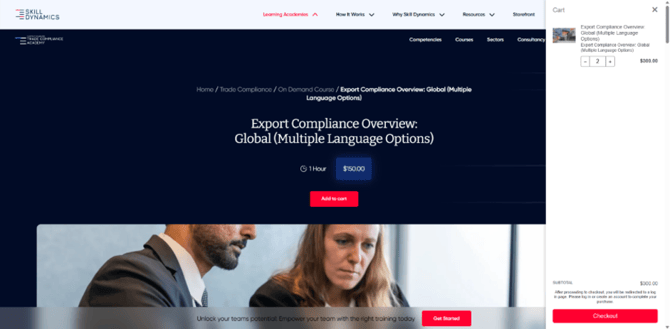
2. Add to Cart: On the course landing page, review the duration and price. Click the red Add to cart button. The slide-out cart drawer will appear on the right side showing your item, subtotal, and a Checkout button.
Screenshot: Adding course to cart.
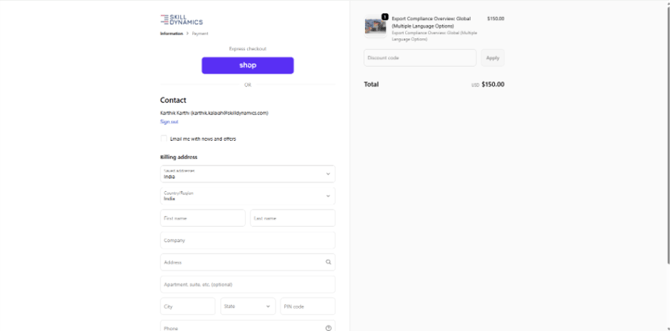
3. Enter Information and Billing Address: Provide your contact email address and complete the standard billing fields (Country/Region, Name, Company, Address, and Phone).
Screenshot: Billing address details
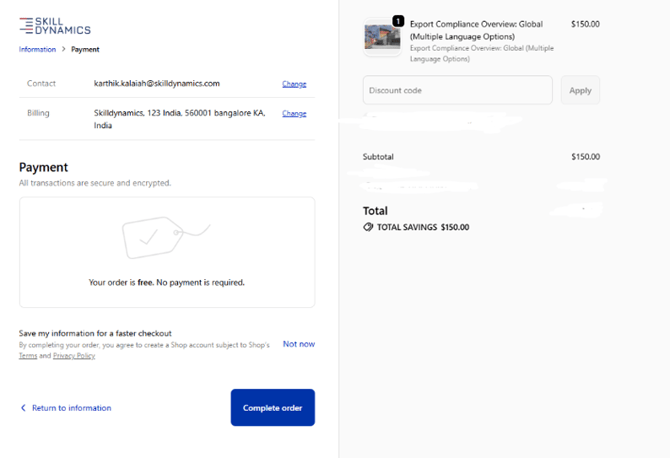
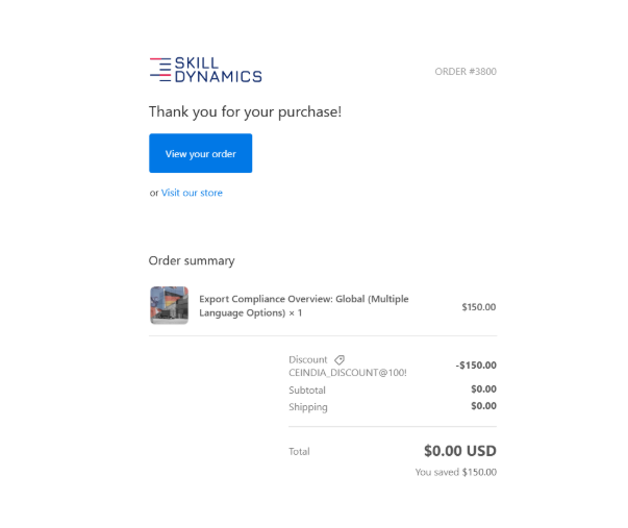
4. Order Confirmation Email: Check your email for a confirmation receipt from Skill Dynamics detailing order summary #3800 showing the finalized $0.00 charge.
Screenshot: Billing confirmation
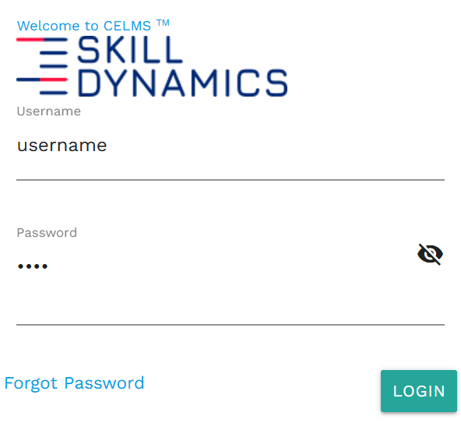
5. Supervisor LMS Login: Navigate to the Skill Dynamics CELMS training portal login screen. Enter your administrative credentials.
Screenshot: Login Page
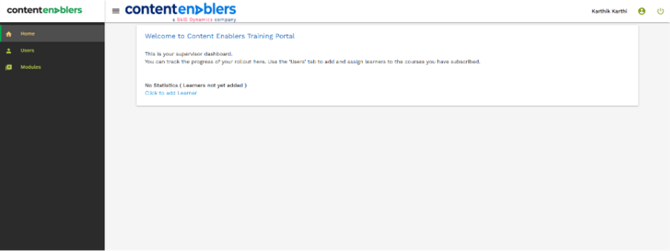
Screenshot: Supervisor dashboard
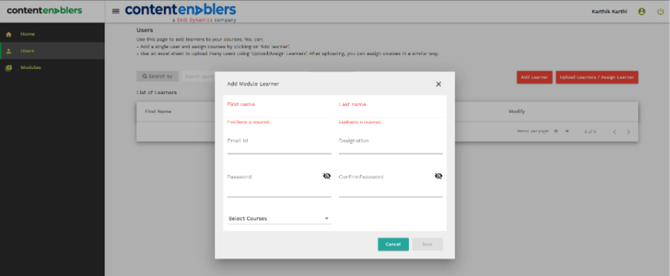
7. Add Module Learner: Click the red Add Learner button to open the "Add Module Learner" modal overlay. Input the learner's First Name, Last Name, Email Id, Designation, and unique Password. Use the Select Courses dropdown to assign the purchased module, then click Save.
Screenshot: Add user under supervisor account.
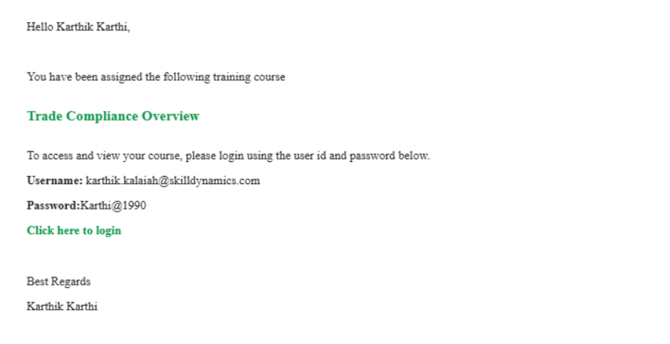
Screenshot: Email confirmation.
Screenshot: Billing acknowledgement.
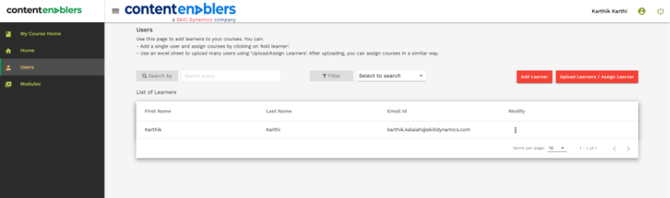
9. Monitor Learner Activation: Back in the supervisor portal under the Users menu, verify that the learner now populates the List of Learners registry table.
Screenshot: Learner list under the supervisor.
10. Learner Training Portal (My Courses): When logging into the learner profile interface, the course panel appears under the left-side tracking bar showing the courses
Screenshot: User home page.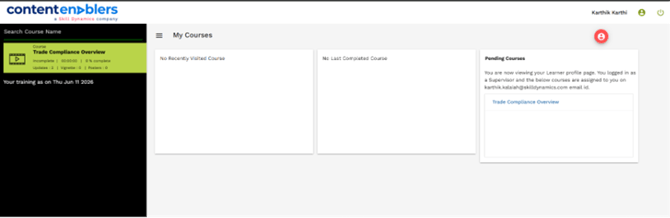
Common reasons you may not be able to continue
- Slow internet connection or browser prevents loading the course.
- Functionality may be affected by using an unsupported browser or disabled cookies and popups.
- Incomplete course topics, all the mandatory topics must be completed before continuing to the next topic or quiz.
- If the course is past the due date.
- In some cases, the LMS requires a few minutes to synchronize completion and course progress. Please refresh the page and check it again.
If you still need help
Please contact Skill Dynamics Content Enablers Support at support@contentenablers.com and include the details below so the team can investigate quickly:
- Invitation email subject line
- Screenshot of the page or message shown
- Full name
- Work email address
- Company name
- Screenshot of the issue or error message
- Date and time the issue occurred
- Browser and device used